How To Connect The Apps
Published on: December 16, 2025
How to connect the mobile app to the desktop app
By default, neither app will make any network connections. You need to enable network sharing in both apps.
1. Enable Server on Desktop
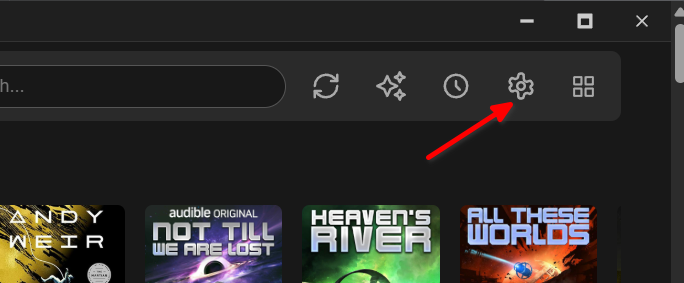
To enable the server on the desktop app, click on Settings.
2. Configure Local Network Sharing
At the bottom of the settings page are the Local Network Sharing settings.
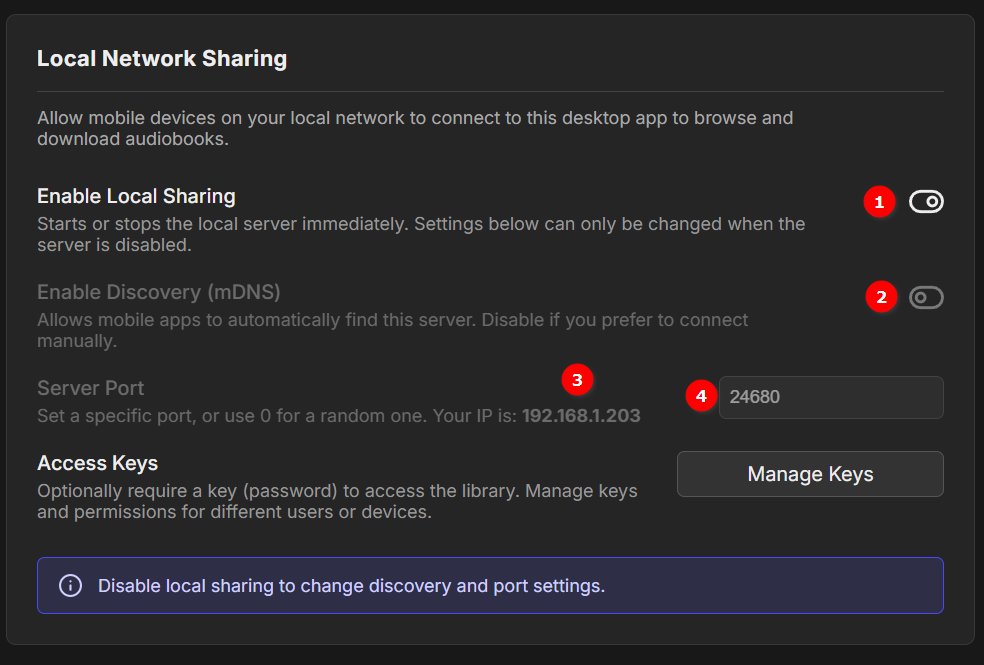
(1) Enable Local Sharing: Windows should automatically ask you to allow access to your network. Hit Allow and continue.
(2) Enable Discovery (mDNS): You can enable this to see if your phone auto-discovers the server. Note: I prefer to turn this off and use static IP addresses.
(3) Local IP Address: This is the number you will type into the mobile app to connect manually.
(4) Port Number: Set a port that won't clash with existing open ports on your computer.
3. Manage Permissions (Optional)
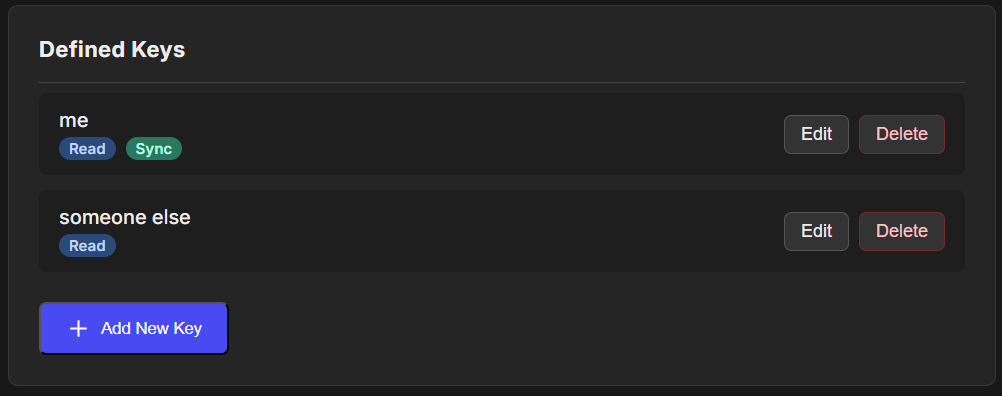
Click "Manage Keys" to control permissions:
- Sync: Listening progress and history will sync with the desktop.
- Read: Allows browsing and downloading, but will not alter listening progress. Use this for other household members so they don't mess up your stats.
4. Mobile App Setup
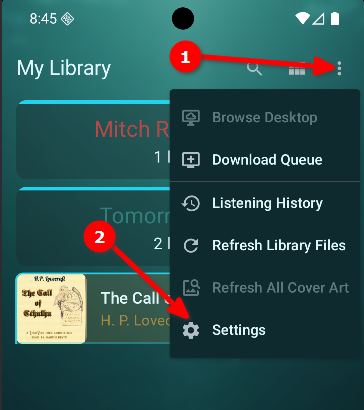
With the desktop app ready, open the mobile app. On the library screen, open Settings.
5. Mobile Connection Settings
In settings, enable Desktop Sync and open the connection menu.
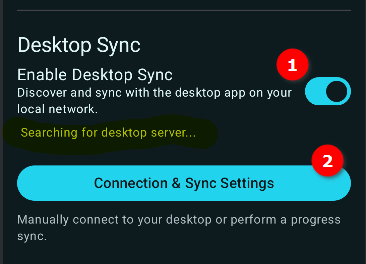
(1) Desktop Sync: Toggle this ON.
(2) Connection & Sync Settings: Tap here to enter your IP and Port.
6. Enter IP and Link
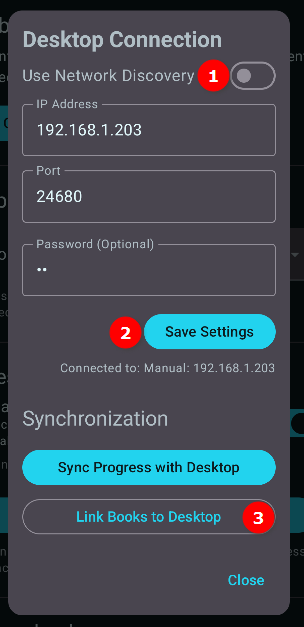
(1) Network Discovery: Since I'm not using mDNS, I turn this OFF. This allows me to manually add the IP, Port, and optional Password from the desktop settings.
(2) Save Settings: Don't forget to save!
(3) Link Books to Desktop: Tap this to sync book metadata. This lets the app know when a book on the phone is the same as a book on the desktop (needed for progress tracking).
7. Browsing the Desktop Library
You can now Browse Desktop to view and download books remotely.
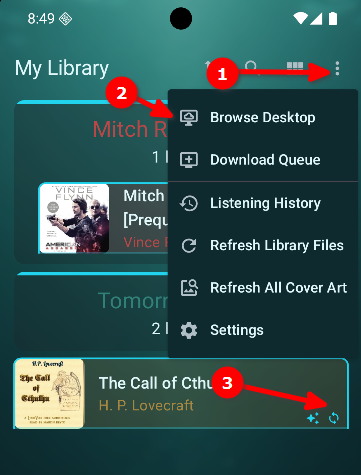
(2) Browse Desktop: Tap here to view the server files.
(3) Linked Icon: A circular icon indicates when a local book is successfully linked to the desktop.
8. Downloading Books
Tip: Tap the top bar to search. Pressing enter will query the server for results.
Download Entire Series
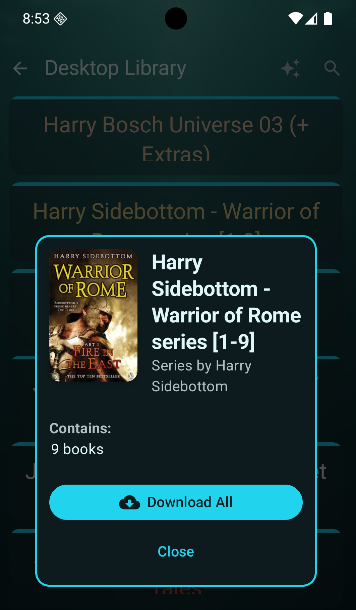
Long Press on a folder to bring up the Series Download screen. This downloads all books in that folder.
Download Individual Book
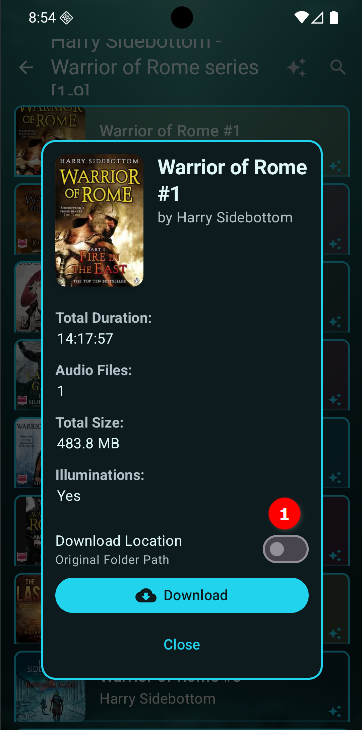
Normal Tap on a book to see info.
(1) Download Options: You can download to the root of your library (flattening the folder structure) or maintain the folder structure.
9. Managing Downloads
While books download, a download icon appears.
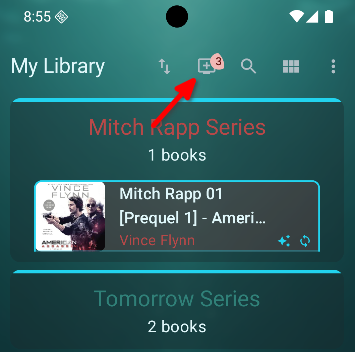
Click the icon to view the queue:
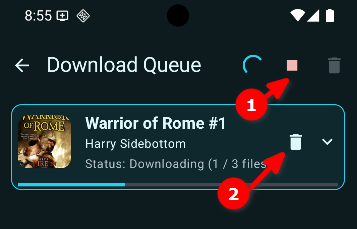
(2) Remove items from the queue.
10. Syncing Progress
Once downloaded, the book is added to your library. If you have listened to this book on another device, and you have sync permissions, you can sync all of your listening progress.
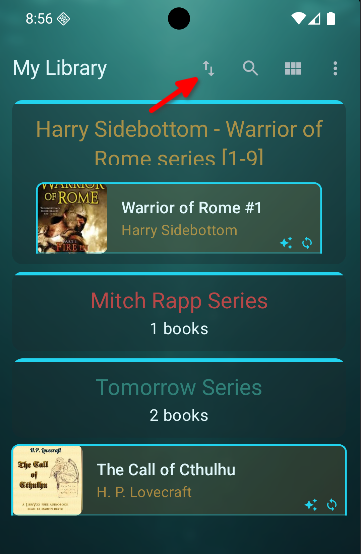
Clicking the Sync Button will download/upload progress based on which device has the most time listened.
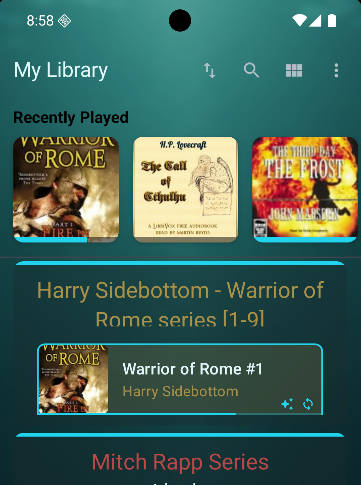
Note: The desktop app does not have a sync button. To sync progress back to the desktop, you must initiate the sync from the mobile app.